Download
Copy your photos or documents to a new drive and Windows quietly resets every file's "Date created" to the day you did the copy. Twenty years of photos suddenly all look like they were taken last Tuesday. This app puts the real dates back, and if the originals are gone for good, it lets you set a date yourself. It shows you exactly what it is going to change before it changes anything, and it keeps a log so any run can be undone. It is free, there is nothing to install, and it does not need an account.
The problem it fixes
Every file on Windows carries three dates: when it was created, when it was last changed, and when it was last opened. When you copy a folder to a new drive with the normal drag and drop, the "modified" date survives but the "created" date is replaced with the moment of the copy. Nothing warns you. You only notice weeks later when you sort your photos by date and they are all in one clump.
If you still have the old drive, the dates are still on it, and this app can read them across and put them back file by file. If the old drive is gone, there are two fallbacks that recover what can be recovered, and the app is honest about which is which. And if nothing can be recovered but you know when the files are from, you can simply tell it the date.
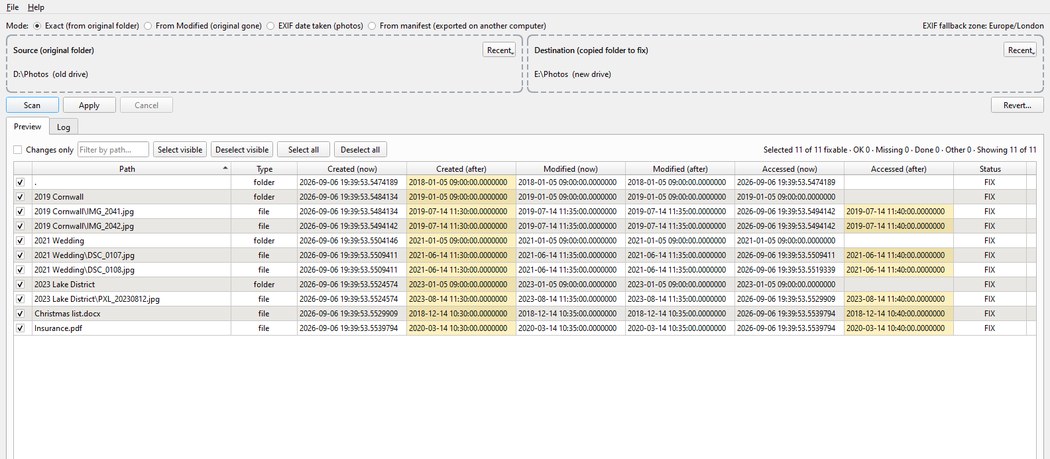
Drop the two folders in, press Scan, and check the preview before anything is written.
What it does
It has five ways of working. You pick one at the top of the window.
| Mode | When to use it | What it puts back |
|---|---|---|
| Exact | You still have the original folder, on the old drive or anywhere else this computer can see. | Created, Modified and Accessed for files. Created and Modified for folders. Copied from the same file in the original folder. |
| From manifest | The originals are on a different computer. Export a small "manifest" file there, carry it over on a USB stick, and import it here. | The same as Exact, using the values saved in the manifest. |
| From Modified | The originals are gone for good. Where a file's created date is later than its modified date, which is impossible for an untouched file, it sets created to match modified. | Created only. A best effort, not the true value. |
| Custom date | The originals are gone, but you know when the files are from: a whole folder of scans from January 1999, say. Type the date and time in, tick which fields to set, and untick any files that should be left alone. | Whichever of Created, Modified and Accessed you tick. The same value on every selected file. |
| EXIF date taken | Photos only. Cameras and phones write the moment the picture was taken inside the file itself, and a copy does not lose that. | Created and Modified, set to the date the photo was taken. |
Whichever mode you choose, the process is the same:
- Drop the folders in. The original on the left, the copy on the right. You can also click a zone to browse, and it remembers recent folders.
- Scan. The app reads every file and folder and builds a preview: the date each one has now, the date it will get, and a status. Nothing is written yet.
- Check the preview. Untick anything you want left alone. Filter to just the files that will change, or search for a name.
- Apply. It asks once for confirmation, then works through the list. Each change is written to a log before it is made.
- Undo if you need to. Press Revert, pick the log from any earlier run, and the app puts every value back exactly as it was, in reverse order.
Setting a date yourself
Sometimes there is nothing left to restore from. The old drive has been thrown away, the files are scans or documents with no date inside them, and all you know is that the whole folder came from one time. A box of photos you scanned in January 1999, say.
The Custom date mode is for exactly that. Type in the date and time, tick which of Created, Modified and Accessed you want set, and press Scan. Every file in the folder appears in the preview with the date it will get. Untick any that should be left alone, press Apply, and they are done. It is one value across the folder rather than a different date on each file, and like every other mode it is logged first, so you can undo it if you change your mind.
One oddity to know about: if you set a date earlier than 1980, Windows stores it correctly and the file's Properties window shows it, but Explorer's Date columns show a blank. That is a limit of Explorer, inherited from a file system format older than most of the files it now displays, not something the app can work around. The app lets you do it, and warns you before you apply.
Things it is careful about
- It never guesses. A file that has been edited or replaced since the scan is skipped and marked as a conflict rather than changed. A file that is open in another program is skipped as busy. You can scan again and retry them.
- It checks its own work. After each change it reads the file back and confirms the dates took. If they did not, it says so.
- It stays inside the folder you gave it. Shortcuts, junctions and symbolic links are listed but never followed, so it cannot wander off into another drive.
- It keeps its log where it can not do harm. If you set the log folder inside the folder you are fixing, it refuses, because writing logs there would disturb the very dates it is restoring.
- If the log ever fails mid-run, the run stops. The rule is simple: no change without a record of what was there before.
What it does not do
I would rather be straight with you about the limits than have you download it and be disappointed.
- It does not copy files. It fixes the dates on files you have already copied. For the copy itself, use Explorer as normal, or if you know your way around a command prompt,
robocopy /COPY:DAT /DCOPY:Tkeeps the dates in the first place. - It only writes to drives formatted as NTFS or ReFS, which is every normal Windows hard drive and SSD. USB sticks and camera cards formatted as FAT32 or exFAT store dates too roughly for the app to be sure of its results, so it tells you and stops.
- It cannot work out dates that no longer exist. If the old drive is gone and the files are not photos, the From Modified mode is the best guess it can make, and it labels that plainly. If you know the date, the Custom date mode lets you supply it instead.
- It skips files that have more than one name (hard links), because changing one would change the other without you seeing it.
- Folders get their created and modified dates back but not the "last accessed" date, because Windows itself rewrites that every time a folder is opened, so there is no original to restore.
- It is Windows only. There is no Mac or Linux version.
Who it is for
I wrote this after the same conversation for the third time: someone had bought a bigger drive, copied everything across, and then rang me because all their photos had "gone wrong". The photos were fine. Only the dates had gone, and the tool that could put them back did not exist in a form I would hand to a client.
It will probably suit you if:
- You have just moved your files to a new drive, a new computer or a NAS box, and the dates are all wrong.
- You keep photos or documents organised by date and the copy has scrambled that.
- You want to see what is going to happen before it happens, and be able to undo it afterwards.
It is probably not for you if:
- You only have a handful of files. Right-click, Properties, and a free tool such as Microsoft's own PowerShell can set a date on one file in less time than this takes to download.
- You want to set different dates on different files one at a time. The custom date mode sets one value across a folder; it is not a per-file date editor.
- You are on a Mac.
Before you use it
The app changes the dates on files. It does not touch the contents, and every change is logged first so it can be reversed. Even so, please take the usual sensible precautions. They cost you two minutes and they protect you against my mistakes as well as your own.
Do not run this on the only copy of files you care about. Back them up first, to a second drive, a USB stick or cloud storage. That advice applies to any tool that touches your files, not just mine.
- Get the folders the right way round. The original goes on the left, the copy you want fixed goes on the right. The app will not let you point both at the same place, but it cannot tell if you have swapped them, so read the preview before you press Apply.
- Match like with like. If you copied
C:\PhotostoD:\Photos, drop those two in. DroppingC:\on one side andD:\Photoson the other gives you a preview full of "missing", and the app does nothing, which is the right outcome but a waste of your time. - Close the files in anything else first, so nothing has a lock on them. Locked files are skipped, not damaged, but you will have to run it again for them.
- Try a small folder first. Run it on one subfolder, look at the result in Explorer, and then do the lot.
- Leave the log folder where it is. By default the logs sit next to the app. You need them if you ever want to undo a run.
Safety and trust
This app is completely free. There are no adverts, no upsells, no account to create, no nag screens, and nothing that phones home. It never connects to the internet. It does not send your files anywhere and it does not collect anything about you. Everything it does happens on your own computer, and you can read every change it made in the log file it leaves behind.
Windows will probably warn you about it, and that is expected. When you run it, Windows SmartScreen may say "Windows protected your PC" or that the publisher is unknown. That is because I have not paid for a code-signing certificate for a free tool I give away. If you are happy to continue, click More info and then Run anyway. If that makes you uneasy, do not run it, and there is no hard feeling on my part.
Please scan the download with your own antivirus if you would like extra reassurance. I would rather you checked than simply took my word for it. Your antivirus is already on your machine and it costs you nothing to use it. If you would like a SHA256 checksum of the file so you can verify it has not been altered in transit, ask me and I will publish one here.
Disclaimer
This free tool is provided as-is. I have tested it carefully, but I cannot guarantee it will work perfectly on every computer or every set of files. Please back up anything important before using it. By downloading and using this tool, you accept that you are responsible for your own files, backups and computer. Mike Will Fix IT is not responsible for data loss, lost work, business interruption, software problems, or other damage caused by using or misusing this tool, as far as the law allows. If you are unsure, ask for help before running it.
I give this away for nothing, so it does not come with a support service. I cannot promise to answer questions about it, fix problems with it, or keep updating it. If you need a tool that is properly supported and built for your situation, that is the paid work below.
Liked this? I can build one for you
Custom Windows apps and small business tools, built around how you actually work.
I wrote this app because a job that should have been simple kept turning into an afternoon. That is usually how these things start: some repetitive task that quietly eats time every week, and no off-the-shelf program that quite does what you need.
If there is a job like that in your business, I can build you a tool for it. Copying details out of emails and into a spreadsheet. Renaming, sorting and filing hundreds of documents. Producing the same report every Monday morning. If you can describe it in plain English, it can usually be automated.
To be clear: bespoke work is a paid service, unlike this free tool. Tell me what the job is and I will give you honest advice and a clear quote first. If it is not worth building, or if something free already does it, I will tell you that instead. You can also read more about bespoke apps before you get in touch.